Dezctop Under Desk PC Mount Unboxing and Installation Guide

See how to install the Dezctop Under Desk PC Mount on Revon, Bifrost, and regular desks, with a closer look at parts, fit, and setup tips.
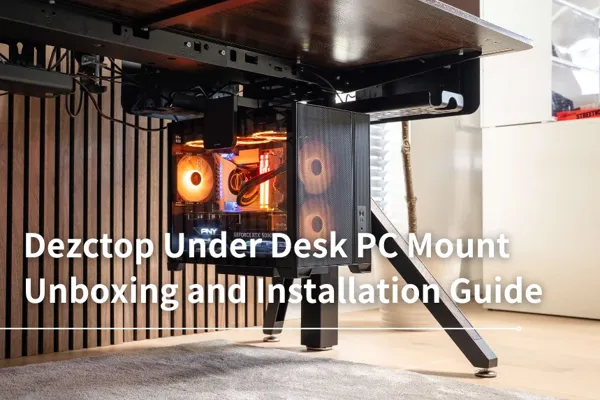
Table of Contents
The Dezctop Under Desk PC Mount has been available for a while, and this time, we’re taking a closer look at how to install it.
This PC mount is designed for quick installation, and it’s manageable even if you’re setting it up on your own. It fits perfectly with the Revon standing desk, and it can also be installed on Bifrost standing desks, Bifrost fixed-height desks, or even regular desks from other brands.
If you’re still wondering whether it will work with your desk, or if you’re not sure what the installation process actually looks like, this guide walks you through the unboxing, the included parts, and the full setup process step by step.
What’s Inside the Box?
Here’s the box for the Dezctop Under Desk PC Mount.

Once you open it, everything is neatly packed, just as you’d expect from Dezctop. The card placed on top is the alignment guide. If you’re installing the PC mount on a Bifrost 160 / 120 fixed-height desk or another regular desk, this guide helps you mark the drilling positions more accurately

The item circled in red is the 10 mm spacer foam. You’ll need it when installing the PC mount on a Bifrost Elite / Pro standing desk or a regular standing desk.

After taking everything out of the box, you’ll see five main groups of parts, including the adapter bracket, base, mounting bracket, PC mount body, spacer foam, screws, and tools.

Compatible PC Case Sizes
The Dezctop Under Desk PC Mount supports PC cases within the following size range:
Height: 315–490 mm (12.4~19.3”)
Width: 180–250 mm (7.1~23.6”)
Depth: 160–600 mm (7.2~9.8”)

Before installation, check your PC case size first. This will help you confirm whether the mount can hold your case properly and whether there will still be enough clearance under the desk after installation.
Installing the PC Mount on a Revon Elite Standing Desk
For this guide, we’re installing the PC mount on a Revon Elite. The installation process is the same for both the Revon Elite and Revon Pro.
First, find the four mounting holes near the desk leg.

You can choose to install the PC mount on either the left or right side of the desk.

Since we’re installing it on a Revon Elite, there’s no need to use the adapter bracket. You can install the mounting bracket directly under the desk.

For the mounting bracket, use four M5 × 8 screws.

Align the screws with the mounting holes, then fasten the mounting bracket in place with the open side (folded U-shape) facing outward.


Once the mounting bracket is secured, this part is done.

Next, take out the PC mount body and the base, then install the Dezctop PC mount onto the base. You can remove the knob screw on top of the PC mount body first. You’ll need it later when hanging the PC mount under the standing desk.

To install the base, use four M4 × 8 screws.

Since it can be difficult to place the PC into the mount after the whole assembly is already installed under the desk, it’s better to combine the PC case and the mount after the base is attached.
Use the spring pin and the adjustment holes on the back of the PC mount to adjust the height.


The knobs on both upper sides can be loosened to extend the side support arms.

After placing the PC case into the mount, don’t forget to tighten the side knobs for a more secure fit.

And that’s it — the PC is now fitted into the mount.

Next, place the PC and PC mount together into the mounting bracket you installed earlier.

You can adjust the PC mount’s position by sliding it forward or backward along the slot. Move it slightly forward if you want more cable clearance at the back of the PC case.

Once you’ve chosen the right position, reinstall the knob screw you removed earlier to secure it in place.

Here’s what it looks like after installation.

One small detail to keep in mind: after installing the PC mount, lower your standing desk to your preferred sitting height and check whether the PC mount still has enough clearance from the floor.

Installing the PC Mount on a Bifrost Elite / Pro Standing Desk or a Regular Standing Desk
If you’re installing the PC mount on a Bifrost Elite / Pro standing desk or a regular standing desk, you’ll need the adapter bracket.

The reason is that the frame design of the Bifrost Elite / Pro is different from the Revon Series. There are no prescrewed mounting holes under the steel frame, so the adapter bracket needs to be installed first.

Use the spacer foam mentioned earlier, then position the adapter bracket against the underside frame of the Bifrost Elite / Pro desk.

At this point, you can mark the holes at the circled positions with a pen. After marking the holes, use an electric drill with a 3.5 mm drill bit and drill about 1 cm into the desktop.

After drilling the pilot holes, use the M5 × 16 self-tapping screws to fasten the adapter bracket. From there, you can install the mounting bracket directly. The rest of the process is the same as the Revon Elite installation.
Can the Under Desk PC Mount Be Installed Under a Bifrost 160 / 120 Desk?
Yes. Although the Bifrost 160 / 120 is a fixed-height desk without a lifting system, it has a spacious rear cable management tray under the desktop.

Because of that structure, you’ll still need to install the adapter bracket first, then attach the mounting bracket before installing the Dezctop PC mount.

How to Install the Under Desk PC Mount on a Regular Desk
For a regular desk, you can install the mounting bracket directly using the alignment guide.
After marking and drilling the holes, use the M5 × 16 self-tapping screws to secure the mounting bracket. Make sure the drilling depth does not exceed three-fourths of the desktop thickness.
Before drilling, also check whether the desk legs or frame will block the side of the mounting bracket. If they do, we recommend installing the adapter bracket together with the mounting bracket for a better fit.
Final Thoughts
If you’ve been thinking about moving your PC case off the floor and mounting it under the desk, or if you simply want a cleaner desk and under-desk setup, the Dezctop Under Desk PC Mount is a practical accessory to consider.
After walking through the unboxing and installation process, we hope this guide makes the setup feel a little more straightforward and helps you decide whether your desk is a good fit for this PC mount.
Tag



-400.webp)
Dezctop